Version control tracks every change to your code and lets you undo mistakes, try ideas safely, and collaborate. Here is what Git does and why you should use it even if you are solo.
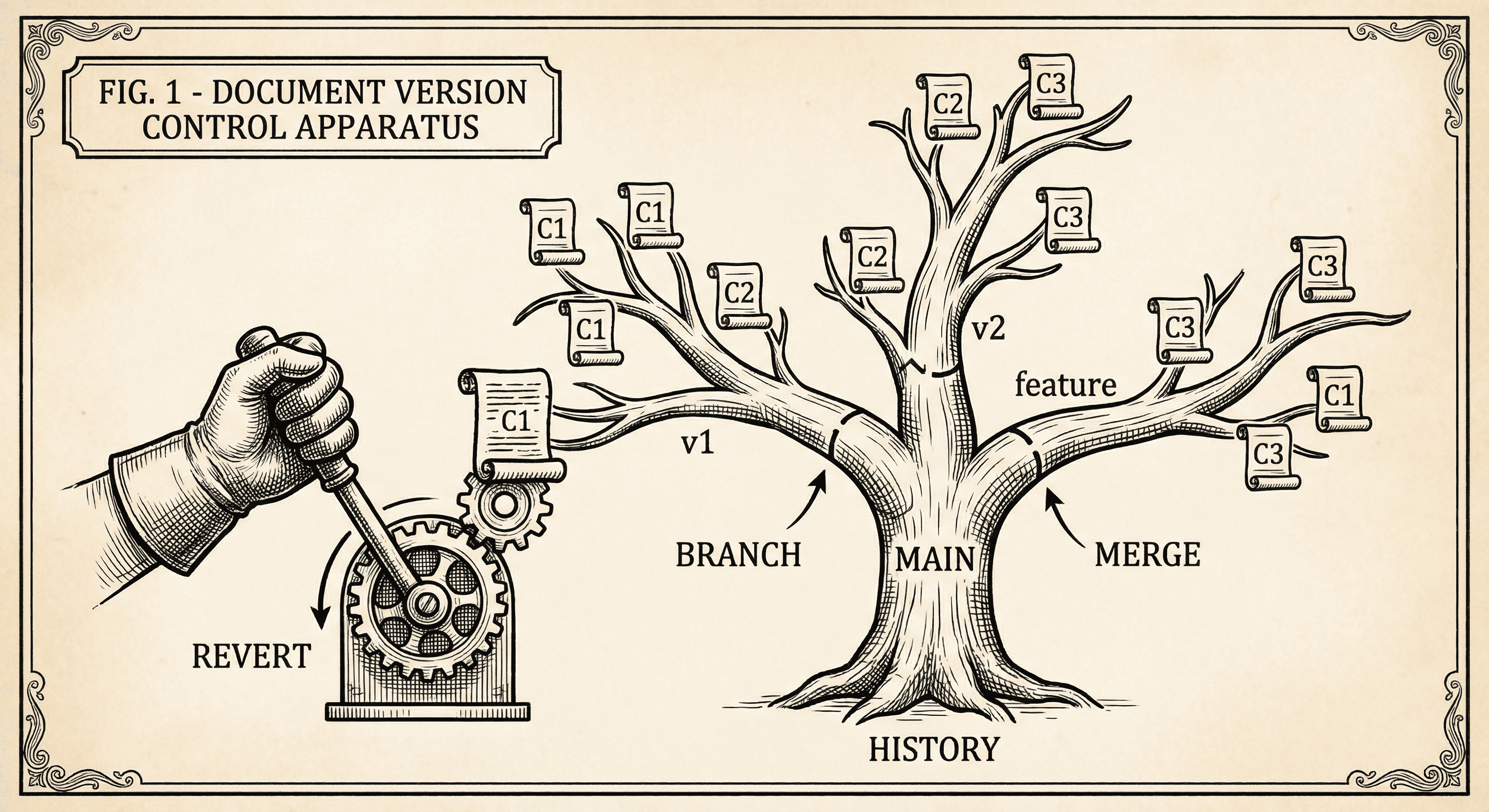
Your project is a folder full of files. You change a file, save it, and maybe break something. Would not it be nice to go back to the version that worked? Or to try a risky change in a copy of the project without touching the main one?
Version control does exactly that. It records every change you make so you can see history, undo mistakes, and experiment safely. Git is the tool that does it, and GitHub (or similar) is where you can store a copy online for backup and deployment. This guide explains the ideas in plain English so you can use Git with confidence.
Without version control:
Git gives you a timeline of your project. Every commit is a saved snapshot with a message. You can rewind to any snapshot, compare two versions, or work on a branch (a separate line of changes) and merge it back when it is ready.
A commit is a snapshot of your project at a moment in time. You make changes to files, then you "commit" them with a short message like "Add contact form" or "Fix login redirect." That snapshot is stored in the history. Later, you can see what changed in that commit or revert to it if something went wrong.
Think of it like save points in a game. You do not lose progress; you can always go back to a previous save.
The repository (or "repo") is your project folder plus Git's history of all commits. When you run git init in a folder (or clone a repo), Git starts tracking that folder. A hidden .git folder stores the history. You do not need to touch it; Git uses it when you commit, branch, or revert.
By default you work on the main branch (sometimes called "master"). A branch is a separate line of commits. You might create a branch called "new-dashboard," build the feature there, and only merge it into main when it works. If the idea fails, you delete the branch and main is unchanged. Branches let you experiment without risking your stable version.
The remote is a copy of your repo on a server — usually GitHub, GitLab, or Bitbucket. You push your commits to the remote to back them up and to let deployment or other people use them. You pull from the remote to get the latest changes. For solo builders, the remote is your backup and often what your hosting provider uses to deploy.
git add).git commit -m "Add contact form").git push). Now they are backed up and (if connected) your host can deploy from them.You repeat this as you build. Small, frequent commits with clear messages make it easy to understand history and revert if needed.
If you have never used Git:
git init in an existing project and connect it to a new remote.git add ., then git commit -m "Your message", then git push. You have just made your first commit and backed it up.Your template likely already has Git set up. If so, you are already using it when you run commands or push from your editor. Learning the basics — commit, push, pull, and maybe branch — will make everything else (deploy, collaboration, recovery) much easier.
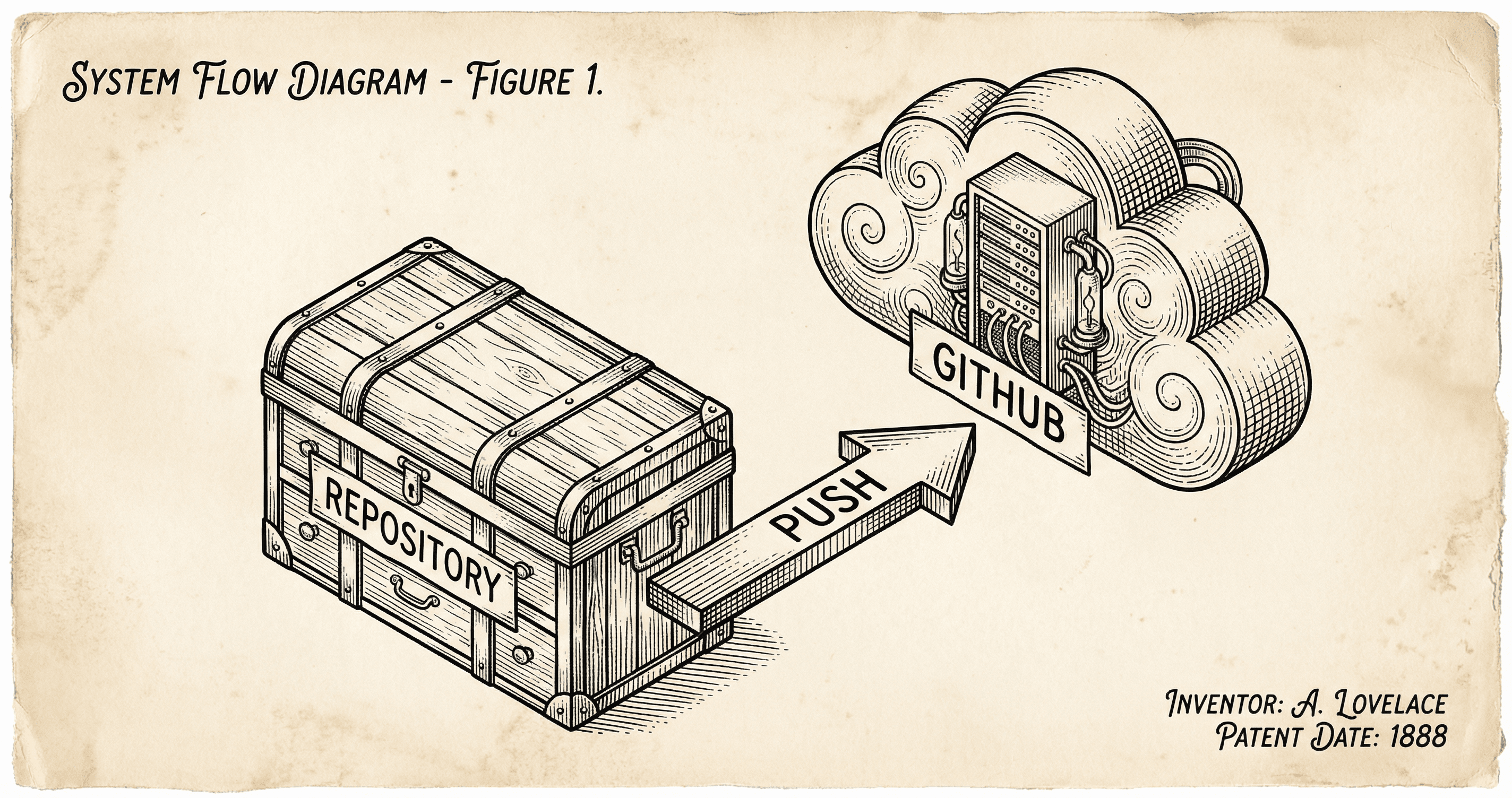
GitHub is where your project lives online and what most hosts use to deploy. Here is what it is, why it matters, and how push connects your code to the rest of the pipeline.
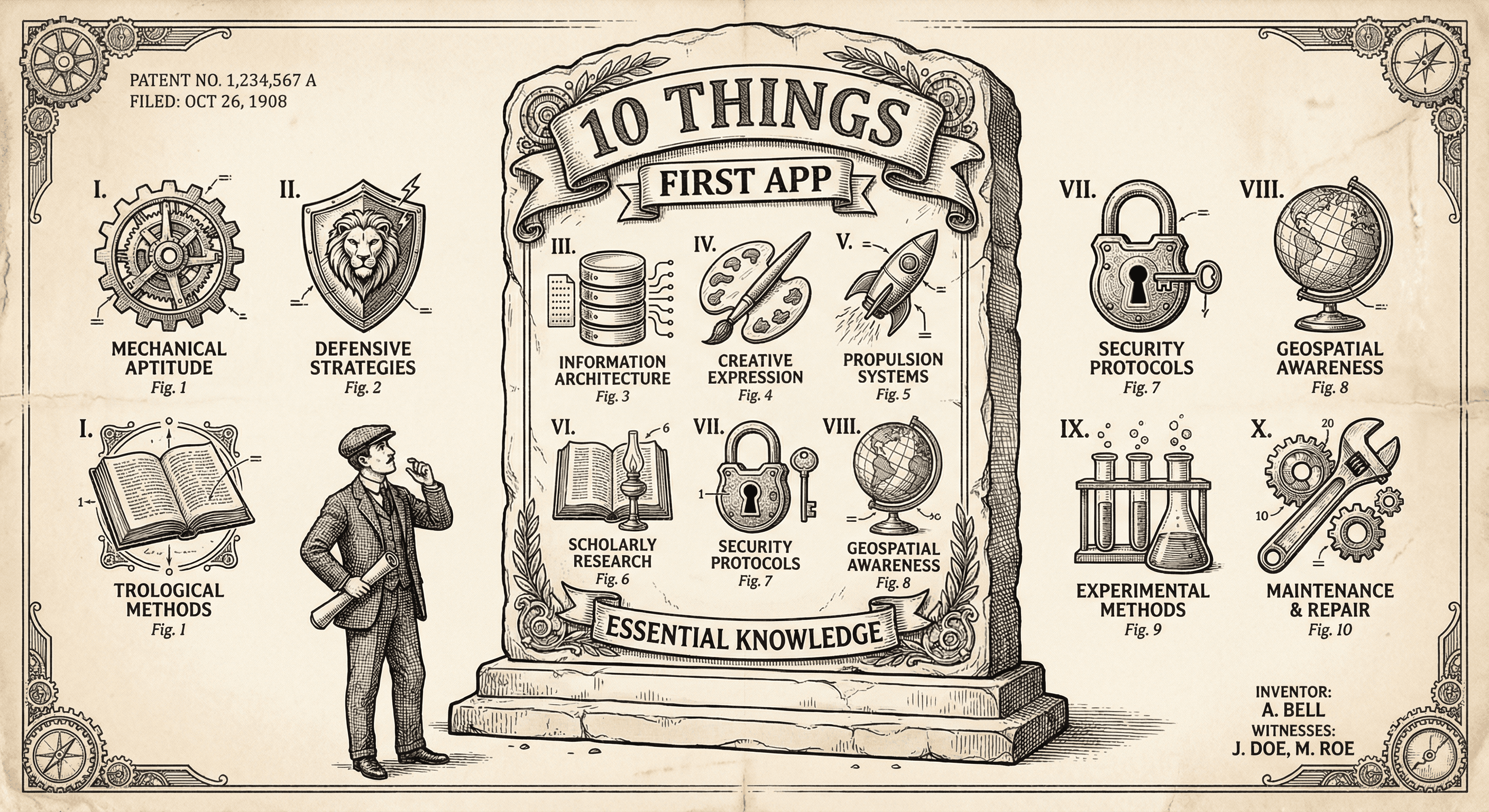
It is not easy, but if you learn these ten simple things before you build, you will be ahead of most first-time builders and avoid the worst pitfalls.
