Every software project — from a weekend side project to a billion-dollar platform — shares the same fundamental building blocks. Here is what they are and why each one exists.
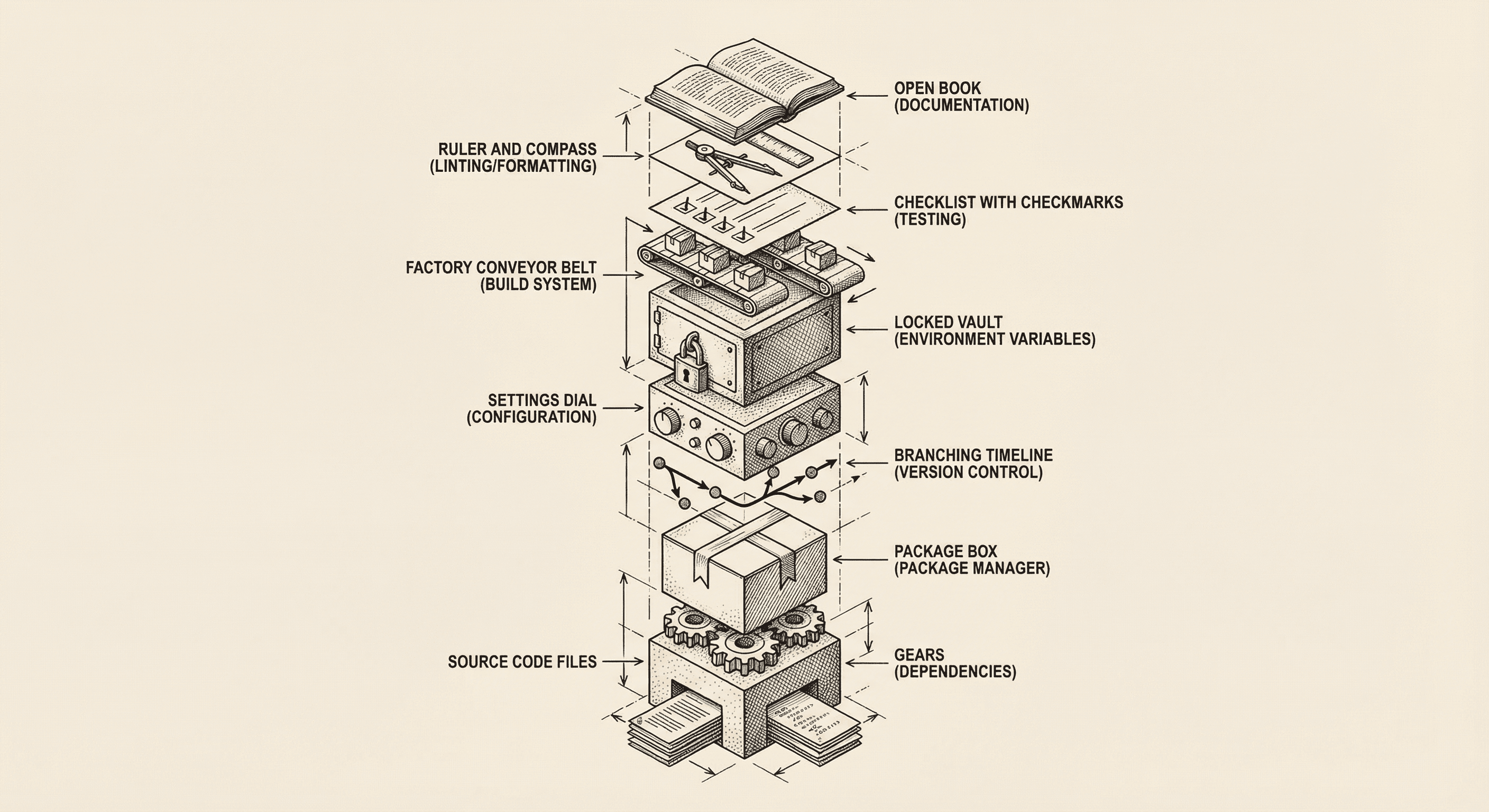
If you looked at the source code of Gmail, Shopify, Notion, or any other web application, you would find the same fundamental building blocks. The programming languages and specific tools differ, but the underlying structure is remarkably consistent.
Understanding these building blocks gives you a mental map of any software project — including the one you are building with this template. Once you know what each piece does, a new codebase stops feeling like a foreign city and starts feeling like a familiar neighborhood.
Here are the ten things you will find in virtually every software project.
At its core, every software project is a collection of source code files — the instructions that tell a computer what to do. These files are written in one or more programming languages and organized into folders by purpose.
In this template, your source code is primarily written in TypeScript (a version of JavaScript with added safety features) and organized into directories:
app/ contains your pages and routes — the screens users navigate betweencomponents/ contains reusable interface pieces — buttons, cards, navigation elementslib/ contains shared logic — utilities, integrations, and business rulesThink of source code like the blueprints and wiring diagrams of a building. They define every room, doorway, electrical outlet, and plumbing connection. The building does not exist without them.
No modern application is built entirely from scratch. Your project relies on dozens (sometimes hundreds) of packages written by other developers. These are called dependencies.
In this template, dependencies include:
You could, in theory, write all of this yourself. But that would take years. Dependencies let you stand on the shoulders of thousands of developers who have already solved these problems.
Think of dependencies like the appliances in a kitchen. You did not build the oven, refrigerator, or dishwasher, but your kitchen depends on them to function. You chose them, installed them, and configured them to work in your space.
With dozens of dependencies, you need a system to install, update, and track them. That system is called a package manager.
This template uses npm (Node Package Manager), which comes bundled with Node.js. When you run npm install, npm reads the list of dependencies from a file called package.json, downloads everything your project needs, and stores it in a node_modules folder.
The package manager also tracks the exact version of every dependency to ensure your project works the same way on every computer and in every environment. This version tracking happens in a file called package-lock.json.
Think of the package manager like a logistics coordinator for a construction site. It knows exactly what materials are needed, orders them from the right suppliers, makes sure they are the correct versions, and keeps an inventory of everything on-site.
Version control tracks every change ever made to your code — who changed what, when, and why. It lets you undo mistakes, compare versions, and collaborate with others without overwriting each other's work.
Nearly every software project in the world uses Git for version control. Git stores the complete history of your project, and services like GitHub provide a remote backup and collaboration platform.
Key Git concepts:
Think of version control like the revision history in Google Docs, but far more powerful. You can see exactly what changed, who changed it, revert to any previous version, and work on different sections simultaneously without conflicts.
Every project has files that control how it behaves — not what it does, but how it does it. These configuration files tell your tools, framework, and hosting environment how to operate.
Common configuration files in this template include:
| File | Controls |
|---|---|
next.config.ts |
How Next.js builds and serves your application |
tsconfig.json |
How TypeScript checks your code for errors |
tailwind.config.ts |
Your design system's colors, spacing, and fonts |
eslint.config.mjs |
Which code quality rules are enforced |
.prettierrc |
How your code is automatically formatted |
playwright.config.ts |
How automated browser tests are run |
Think of configuration files like the settings on your kitchen appliances. The oven's temperature dial, the refrigerator's thermostat, and the dishwasher's cycle selector all control behavior without changing what the appliance fundamentally is.
Some settings need to be different depending on where your application is running. Your development machine uses a test database, but your production server uses the real one. Your test environment uses fake payment keys, but production uses live ones.
These settings are stored as environment variables — values that live outside your code in a special file (.env.local for development, configured in your hosting platform for production).
Environment variables typically include:
The critical rule: environment variables must never be committed to version control. They contain secrets. Instead, projects include a .env.example file that lists every required variable with placeholder values and explanatory comments, so anyone setting up the project knows what they need to provide.
Think of environment variables like a safe in your restaurant's office. The recipes (code) are posted in the kitchen for everyone to see, but the financial records, supplier contracts, and alarm codes (secrets) are locked away separately.
The code you write during development is not exactly the code that runs in production. Before your application can be deployed, it goes through a build process that transforms it into an optimized version:
In this template, running npm run build triggers the entire build process. Next.js handles most of this automatically.
Think of the build process like preparing a dish for service in a restaurant. The raw ingredients (your development code) are transformed through cooking, plating, and garnishing (the build steps) into the final dish (the production application) that reaches the customer.
Professional software projects include automated tests — code that verifies your application works correctly. Tests catch bugs before your users do and give you confidence to make changes without accidentally breaking something.
This template includes several types of tests:
Running npm run test:unit and npm run test:e2e executes these tests automatically.
Think of testing like quality control in a manufacturing plant. Before a product ships, it goes through a series of checks — does it meet specifications? Does it work under stress? Does it look right? Automated tests perform these checks for your code every time you make a change.
When multiple people (or the same person over many months) write code, inconsistencies creep in. Different indentation styles, inconsistent naming conventions, and subtle errors can make a codebase harder to read and more prone to bugs.
Two tools prevent this:
A linter (ESLint in this template) scans your code for potential problems — unused variables, unreachable code, accessibility issues, and patterns known to cause bugs. It catches mistakes that are technically valid code but are almost certainly unintentional.
A formatter (Prettier in this template) automatically formats your code to follow consistent style rules — indentation, spacing, line length, and quote marks. You never need to think about formatting; Prettier handles it every time you save a file.
Together, these tools act like a copy editor for your code. The linter catches factual errors and unclear writing; the formatter ensures consistent style and punctuation.
Every project needs documentation — written explanations of what the project does, how to set it up, how to use it, and why certain decisions were made. Documentation is how knowledge survives beyond the person who originally wrote the code.
Common documentation in this template:
| File or Folder | Purpose |
|---|---|
README.md |
The front door — project overview, setup instructions, quick start |
docs/ |
Detailed guides for specific topics (security, authentication, deployment, etc.) |
.env.example |
Documents every environment variable and its purpose |
| Code comments | Inline explanations of complex logic directly in the source code |
Good documentation answers the questions someone will have when they encounter your project for the first time: What is this? How do I run it? Where do I find things? Why was this built this way?
Think of documentation like the employee handbook for a restaurant. New staff need to understand the menu, the kitchen procedures, the safety protocols, and the house rules. Without documentation, every new person has to figure everything out through trial and error.
These ten building blocks form a cycle that repeats throughout the life of any software project:
Every professional software team in the world follows this pattern, whether they are building a small startup product or a platform used by millions.

Understand the difference between websites and web applications, how they work under the hood, and why this matters for the product you are about to build.
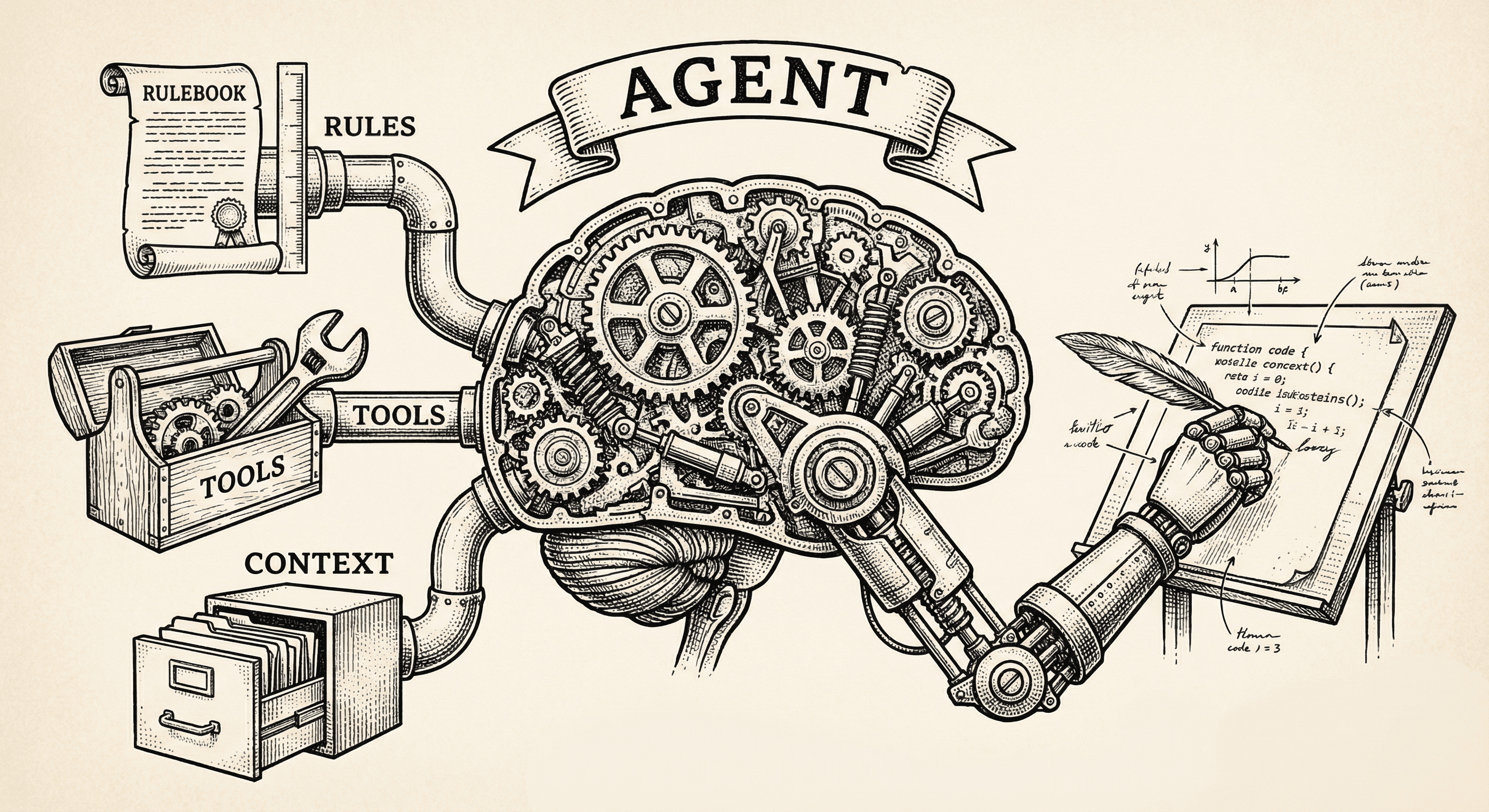
Everyone says they have agents. Most do not. Here is what actually makes an AI system an agent, how agents differ from chatbots and automation, and the formula that turns a language model into something that can build software.
